How to Use IBO Player on Windows PC Without Bluestacks: A Step-by-Step Guide
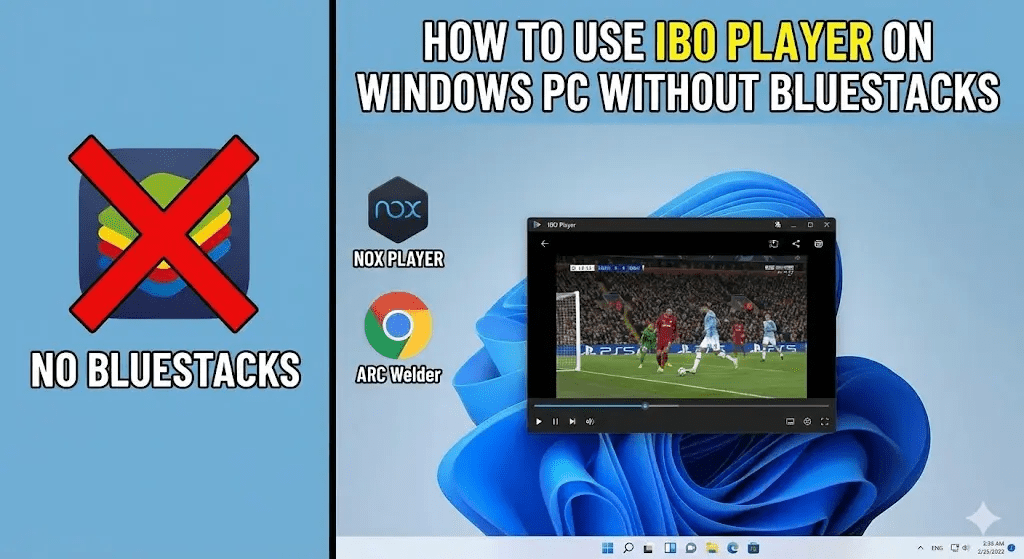
For fans of live sports, TV shows, and streaming content, IBO Player has become a popular choice. Its wide range of channels, sports broadcasts, and user-friendly interface makes it a favorite among entertainment enthusiasts. Traditionally, many Windows PC users have relied on Android emulators like Bluestacks to run IBO Player. However, Bluestacks can be resource-heavy, slow on older PCs, and sometimes prone to crashes. The good news is that there are alternative ways to use IBO Player on Windows without Bluestacks, making the streaming experience smoother and more accessible.
[elementor-template id=”2191″]
In this guide, we’ll explore how to install and use IBO Player directly on your Windows PC, along with tips to optimize performance and enjoy uninterrupted viewing.
Why You Might Want to Avoid Bluestacks
Bluestacks is the most common Android emulator for PC, but it has several drawbacks for IBO Player users:
- High System Resource Usage: Bluestacks consumes significant CPU and RAM, which can slow down other applications.
- Compatibility Issues: Some versions of Windows may experience lag or crashes with Bluestacks.
- Complex Setup: New users often struggle with Bluestacks installation and configuration.
- Ads and Bloatware: Bluestacks can include ads or optional software that may not be desirable for all users.
For these reasons, many users prefer alternative methods that are lighter, faster, and more stable for streaming IBO Player.
Method 1: Using Nox Player
One of the best alternatives to Bluestacks is Nox Player, a lightweight Android emulator that runs smoothly on most Windows PCs. It is specifically designed for gaming and streaming apps, making it ideal for IBO Player.
Step-by-Step Guide Using Nox Player:
- Download and Install Nox Player: Visit the official Nox Player website and download the Windows version. Run the installer and follow the on-screen instructions.
- Set Up Nox Player: Once installed, launch Nox Player and sign in with your Google account to access the Play Store.
- Install IBO Player: Search for IBO Player in the Play Store or download the APK file from the official IBO Player website. Drag and drop the APK into Nox Player to install it.
- Launch IBO Player: Open the app, grant necessary permissions, and enjoy live streaming directly on your PC.
Nox Player uses fewer system resources compared to Bluestacks, making it a good choice for older PCs or users who want a smoother streaming experience.
Method 2: Using an APK Installer With ARC Welder
If you don’t want to use an emulator at all, you can run IBO Player directly through Google Chrome using the ARC Welder extension, which allows Android apps to run in Chrome.
Step-by-Step Guide Using ARC Welder:
- Install Google Chrome: Ensure you have the latest version of Google Chrome installed on your PC.
- Download ARC Welder: Visit the Chrome Web Store and add the ARC Welder extension.
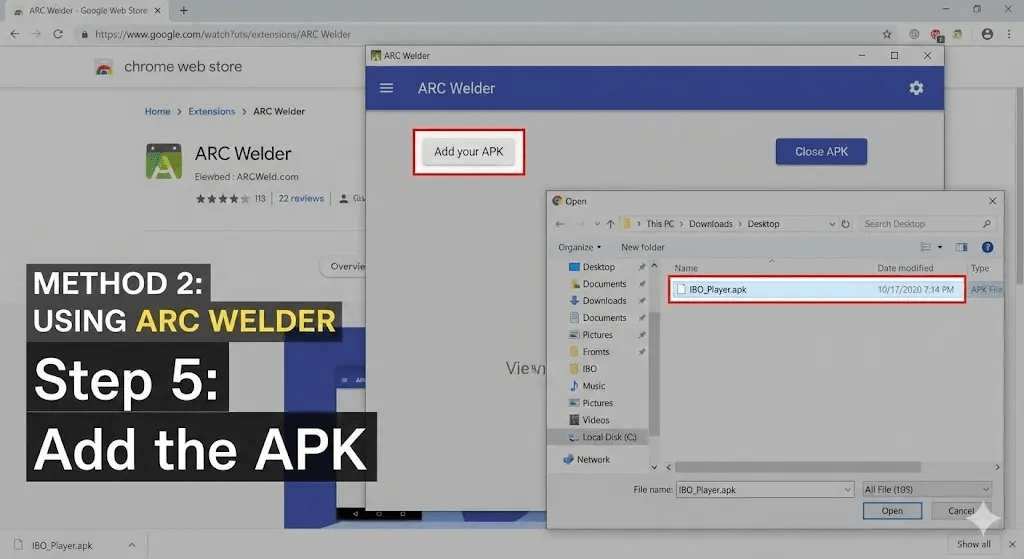
- Download IBO Player APK: Obtain the official IBO Player APK from the website. Make sure it is the latest version to avoid compatibility issues.
- Open ARC Welder: Launch ARC Welder in Chrome, and select the folder where ARC Welder can store app data.
- Add the APK: Click on “Add your APK,” then select the IBO Player APK you downloaded.
- Configure Settings: Choose orientation (portrait or landscape) and form factor (tablet or phone).
- Launch IBO Player: Once configured, click “Test” to open IBO Player within Chrome and start streaming.
This method is lightweight and doesn’t require a full emulator, but it may have performance and notification limitations.
Method 3: Using Android Subsystem for Windows (Windows 11)
[elementor-template id=”2191″]
For Windows 11 users, Microsoft introduced the Windows Subsystem for Android (WSA), which allows you to run Android apps natively on Windows without an emulator like Bluestacks.
Steps to Use IBO Player with WSA:
- Enable Windows Subsystem for Android: Go to the Microsoft Store and install the Windows Subsystem for Android along with the Amazon Appstore.
- Enable Developer Mode: Go to **Windows Settings > Privacy & Security > For Developers**, then turn on **Developer Mode**..
- Install IBO Player APK: Use ADB (Android Debug Bridge) to install the APK. Open a command prompt and type:
adb install path-to-ibo-player.apk - Launch the App: Once installed, IBO Player will appear in your Start Menu. Open it and begin streaming without any third-party emulator.
This method allows native performance, lower resource usage, and a more integrated experience on Windows 11.
Tips for Optimal Performance
- Update Graphics Drivers: Streaming apps rely on GPU acceleration. Make sure your graphics drivers are up-to-date.
- Use a Stable Internet Connection: IBO Player streams live content, so high-speed and stable internet ensures smooth playback.
- Close Unnecessary Apps: Free up RAM by closing unused applications to prevent buffering or lag.
- Adjust App Settings: Within IBO Player, you can reduce streaming quality if your PC or internet speed struggles with high-resolution content.
Advantages of Using IBO Player Without Bluestacks
- Faster Load Times: Emulators like Bluestacks take time to start. Alternatives like Nox or WSA launch almost instantly.
- Reduced System Resource Usage: Less CPU and RAM consumption, resulting in smoother performance.
- More Stability: Fewer crashes and better compatibility with Windows 10 or 11.
- Clean Interface: Avoid unnecessary ads and bloatware associated with Bluestacks.
Conclusion
Using IBO Player on Windows PC without Bluestacks is not only possible but also recommended for users seeking a smoother, faster, and more reliable streaming experience. Whether you choose Nox Player for a lightweight emulator, ARC Welder for Chrome-based installation, or Windows Subsystem for Android on Windows 11, there are multiple ways to enjoy IBO Player without compromising on performance.
For fans of live sports, TV channels, and on-demand content, these methods provide flexibility and convenience, ensuring that you can watch your favorite shows without unnecessary lag or resource issues. By following the steps outlined in this guide, any Windows user can stream IBO Player efficiently and make the most of their viewing experience.
With the right setup, high-speed internet, and performance tweaks, Windows PC users can enjoy IBO Player just like on mobile devices—without relying on Bluestacks at all.