Think you need to jailbreak your Firestick to watch IPTV? You absolutely don’t. The process is simpler, safer, and faster than most people realise — and it takes less than ten minutes from start to finish. This guide walks you through every single step, in plain language, with no technical jargon.
What Is IPTV and Why Use It on a Firestick?
IPTV stands for Internet Protocol Television — a way of streaming live TV channels, sports, movies, and on-demand content through your internet connection rather than a traditional cable or satellite dish. Instead of paying a hefty monthly cable bill for channels you never watch, IPTV lets you access thousands of channels at a fraction of the cost, on any device, anytime you want.
The Amazon Firestick is the most popular device for IPTV streaming in 2026, and for very good reason. It’s affordable (typically £30–£50 or $35–$55), tiny enough to travel with, supports full 4K HDR output, and — crucially — supports sideloading apps that aren’t listed in the official Amazon App Store. That last part is exactly what makes IPTV possible on a Firestick without any jailbreaking whatsoever.
The confusion around “jailbreaking” is understandable. On an iPhone, unlocking the device to install unofficial apps requires a genuine jailbreak — a risky process that voids your warranty. On a Firestick, the equivalent is simply enabling a standard built-in developer setting that Amazon itself provides. It takes about thirty seconds to activate and is completely reversible. That’s it. No hacking. No risk. No warranty void.
Let’s get you set up.
What You Need Before You Start
Before diving into the steps, make sure you have the following ready:
- An Amazon Firestick — any generation works (Lite, HD, 4K, or 4K Max). For best IPTV performance in 2026, the Firestick 4K Max is recommended thanks to its 3GB RAM and Wi-Fi 6 support.
- A stable internet connection — minimum 25 Mbps for smooth HD streaming; 50 Mbps or higher recommended for 4K.
- An active IPTV subscription from a legitimate provider — your provider will give you either an M3U playlist URL or Xtream Codes API login details (a username, password, and server URL).
- A remote control for your Firestick.
One important note for 2026: if you purchased a brand-new Firestick in late 2025 or 2026, check whether it runs Fire OS 7/8 or the newer Vega OS. To check, go to Settings → My Fire TV → About. If you see Fire OS 7 or Fire OS 8 listed, you are good to proceed with this guide. If your device shows Vega OS, sideloading is currently not supported on that hardware. The standard Firestick HD and 4K models sold before mid-2025 all run Fire OS and work perfectly.
Step 1 — Enable “Apps from Unknown Sources” (No Jailbreak Required)
This is the only “unlocking” step required, and Amazon built it in themselves. Here’s how to do it:
- From your Firestick home screen, press the Menu button (three horizontal lines) or navigate using the remote to the Settings cog in the top right.
- Scroll right and select My Fire TV.
- Select Developer Options. (If you don’t see this option, go to My Fire TV → About and click on your Fire TV version number 7 times in a row — this unlocks Developer Options.)
- Inside Developer Options, find the toggle labelled Install Unknown Apps or Apps from Unknown Sources.
- Toggle it ON. Amazon will show a warning message. Press Turn On to confirm.
That’s the entire “jailbreak equivalent.” You’ve just told your Firestick it’s allowed to install apps from outside the Amazon App Store. The whole process takes under a minute.
Step 2 — Install the Downloader App
The Downloader app is a free, Amazon-approved tool made by AFTVnews that lets your Firestick download APK files (Android app installer files) directly from the internet using a web address. It’s available in the official Amazon App Store, so no tricks are needed to get it.
- From the Firestick home screen, press the Search icon (magnifying glass) at the very top.
- Type “Downloader” and select it from the results.
- Find the app made by AFTVnews — it has a simple orange icon.
- Select Download and wait for it to install.
- Once installed, open Downloader.It will prompt you to allow access to your device’s storage — simply approve the request to continue.
- When Downloader opens, it will ask you to enable it to install apps. Allow this permission.
Downloader is now your tool for bringing any IPTV app onto your Firestick. Think of it as your personal app-fetching assistant.
Step 3 — Choose and Install Your IPTV App
This is where the choice comes in. There are several excellent IPTV player apps available in 2026. None of them provide content themselves — they are simply the interface through which you connect your IPTV subscription. Here are the top options:
IPTV Smarters Pro — Best for Beginners
Website: iptvsmarters.com
IPTV Smarters Pro is the most beginner-friendly IPTV app available and the go-to recommendation for first-time users. It’s completely free, supports both M3U playlist URLs and Xtream Codes API logins, and works across Firestick, Android TV, iOS, and even Windows. The interface is clean and straightforward, and the setup literally takes under two minutes once installed.
To install via Downloader: Open Downloader, tap the URL bar, and enter the direct APK download link from the official IPTV Smarters website. Once downloaded, tap Install, then Open.
TiviMate IPTV Player — Best Overall for Power Users
Website: tivimate.com
TiviMate is widely regarded as the gold standard IPTV player for Firestick in 2026. Its interface is sleek, cable-TV-like, and exceptionally well-designed for remote navigation. Key features include a beautiful Electronic Programme Guide (EPG), multi-playlist support, catch-up TV, built-in recording (DVR), picture-in-picture mode, and a multi-panel layout that shows four streams at once. The free version is solid; TiviMate Premium (around £4/year) unlocks the full feature set and is genuinely worth it.
TiviMate is not on the Amazon App Store, so you install it the same way via Downloader, using the APK URL from the official TiviMate website.
OTT Navigator — Best Budget Alternative
Website: Available via Aptoide TV or direct APK download
OTT Navigator offers an impressive feature set at a remarkably low price — around $0.99 per month or a one-time $19.99 lifetime licence. It supports M3U, Xtream Codes, and Stalker Portal connections, with deep EPG customisation and multi-playlist management. The interface is clean and responsive on Firestick. For users who want TiviMate-level features without TiviMate’s price, this is the smart pick.
XCIPTV — Best Free Option
A completely free, ad-free IPTV player with a fast, clean interface and external player support (which offloads video decoding from the Firestick’s CPU and reduces buffering). Ideal for users who want something lightweight and completely free.
Step 4 — Enter Your IPTV Subscription Credentials
Once your chosen IPTV app is installed and open, the setup is nearly complete. Your IPTV provider will have sent you login details in one of two formats:
Option A — Xtream Codes API (most common):
- Server/Portal URL
- Username
- Password
In the app, select Add New User → Xtream Codes API and enter these three details exactly as provided. The app will connect to your provider’s server and pull your full channel list and VOD library — this usually takes 10–60 seconds depending on your connection speed.
Option B — M3U Playlist URL: Select Add New User → M3U URL and paste in the full playlist link your provider sent you. The app will import all your channels automatically.
Once loaded, you’ll see your complete channel list, organised by category — sports, news, entertainment, movies, and more. You’re now live.
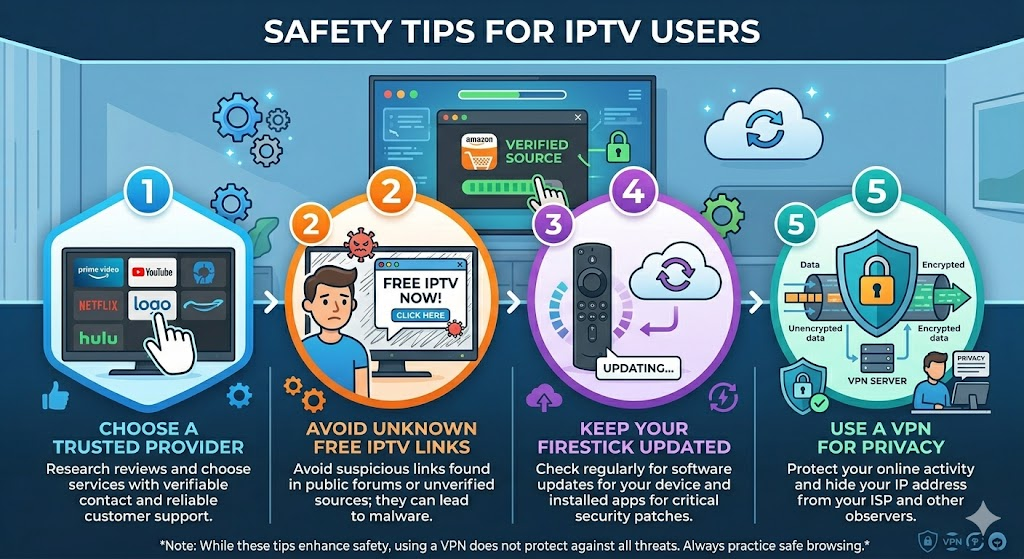
Step 5 — Use a VPN for Privacy and Better Performance
A VPN is not strictly required for IPTV, but it is strongly recommended for two important reasons:
- Privacy — Your internet provider can see what you stream. A VPN encrypts your traffic so your viewing activity remains private.
- ISP throttling — Many internet providers deliberately slow down streaming traffic. A VPN bypasses this throttling, often resulting in noticeably smoother playback and fewer buffers — especially during live sports.
The two most popular VPN options for Firestick IPTV in 2026 are:
- ExpressVPN — expressvpn.com — Fast, reliable, with a dedicated Fire TV app available directly from the Amazon App Store. Premium price but excellent performance.
- NordVPN — nordvpn.com — Slightly cheaper, also has a native Fire TV app, and offers strong server coverage globally.
Both have money-back guarantees, so you can test them risk-free.
Common Problems and How to Fix Them
Buffering or lag: First, run a speed test — you need at least 25 Mbps for HD. If your speed is fine, try using a VPN, as ISP throttling is the most common cause of buffering in 2026. You can also switch your player to use an external decoder — in IPTV Smarters Pro, go to Settings and enable External Player, then install MX Player (mxplayer.in) or VLC (videolan.org) from the Amazon App Store. This reduces CPU load on your Firestick by up to 15% and can eliminate frame-skipping on 4K content.
“Authorization Failed” error: Double-check your server URL, username, and password. Ensure there are no extra spaces. Confirm your subscription hasn’t expired by contacting your provider.
App removed after a Fire OS update: Amazon occasionally flags sideloaded apps after updates. Simply reinstall the app via Downloader using the same APK link. Consider disabling automatic updates in Settings → My Fire TV → About to prevent future interference.
Can’t find Developer Options: Go to Settings → My Fire TV → About and click your Fire TV version number seven times consecutively to unlock it.
Useful Resources to Bookmark
- AFTVnews (aftvnews.com) — The creators of Downloader; excellent for Firestick guides and news
- FirestickTricks (firesticktricks.com) — One of the best independent resources for Firestick tutorials
- TroyPoint (troypoint.com) — Comprehensive IPTV app comparisons and streaming guides
- Reddit r/fireTV (reddit.com/r/fireTV) — Active community for troubleshooting and tips
Final Thoughts
Setting up IPTV on a Firestick in 2026 genuinely does not require a jailbreak, technical knowledge, or anything more complicated than toggling a single developer setting and installing a free download tool. The entire process — from unboxing to watching your first live channel — can be done in under ten minutes.
The key takeaway: enabling “Apps from Unknown Sources” is not jailbreaking. It is a standard, reversible, Amazon-sanctioned developer feature that millions of users around the world use daily. Once enabled, IPTV Smarters Pro or TiviMate will transform your Firestick into a powerful entertainment hub — live sports, thousands of TV channels, movies, and on-demand content, all in one place.
Get your IPTV subscription, follow the steps above, and enjoy the upgrade.