
Watching a movie or a live sports match and noticing that the audio doesn’t match the video is one of the most frustrating streaming problems. When the sound lags behind the action—or sometimes even races ahead—it breaks immersion and can ruin the experience. This issue, often called a lip-sync error, is common among IPTV users, but the good news is that it can usually be fixed quickly.
What is Audio Out of Sync?
Audio out of sync occurs when the sound is delayed or ahead of the video. For example, you may see a player kick a ball, but the sound of the kick happens a second later. Or in dialogue scenes, the actor’s lips move before the words are heard. This can happen for several reasons:
- Slow internet connection causing buffering.
- Corrupted app cache or temporary glitches.
- Stream format or codec incompatibility.
- Device processing limitations, especially on older Smart TVs or low-spec Android boxes.
Understanding why it happens makes troubleshooting faster and more effective.
Step-by-Step Fixes for IBO Player Audio Out of Sync
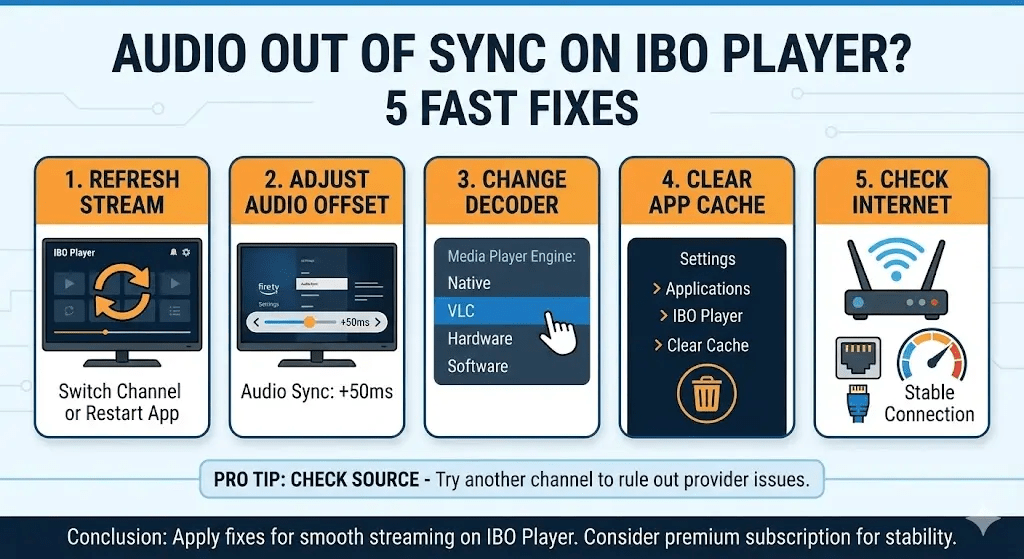
Fix 1: The “Refresh” Method
Sometimes, the easiest solution works best.
- Switch to another channel or streamin IBO Player.
- Wait a few seconds and then switch back.
- Alternatively, restart the IBO Player app
This method clears temporary glitches that can occur during playback. Often, this simple step resolves minor sync issues immediately.
Fix 2: Adjusting Audio Offset
Many IPTV apps and Smart TVs allow you to tweak audio timing.
- Open Settingsin your TV or IBO Player app.
- Look for Audioor Audio Sync/Offset
- Adjust the audio delayin small increments (e.g., +50ms or -50ms) and test playback.
This is especially helpful if only certain channels or streams are affected. Some devices even allow separate adjustments for HDMI or digital output.
Fix 3: Change Media Player Engine
A very common reason for audio lag is the decoder engine used by the player. IBO Player allows you to switch between different decoding methods.
- Open Settingsin IBO Player.
- Find Decoder or Media Player Engine.
- Options typically include: Native, VLC, Hardware, or Software
- Switch from your current settingto another engine and test playback.
For example, if you are using Hardware decoding and notice lag, try Software decoding. Using VLC as the media engine can also solve sync issues for some streams.
Fix 4: Clear App Cache
Over time, temporary files can cause glitches in IBO Player. Clearing the cache often resolves audio-video mismatches.
On Firestick or Android TV:
- Go to Settings > Applications > IBO Player.
- Select Clear Cache.
- Restart the app and play your stream again.
Clearing cache does not delete your account or settings, just temporary data that may be causing playback problems.
Fix 5: Check Your Internet Connection
A slow or unstable internet connection is a common cause of audio lag. Even a high-speed connection can experience brief interruptions.
- Restart your router/modemto refresh your connection.
- Ensure your device has a stable Wi-Fi signal, preferably using 5GHz for less interference.
- If possible, use a wired Ethernet connectionfor the most consistent streaming.
A stable connection minimizes buffering, which is a major contributor to audio-video delay.
Pro Tip: Check the Source
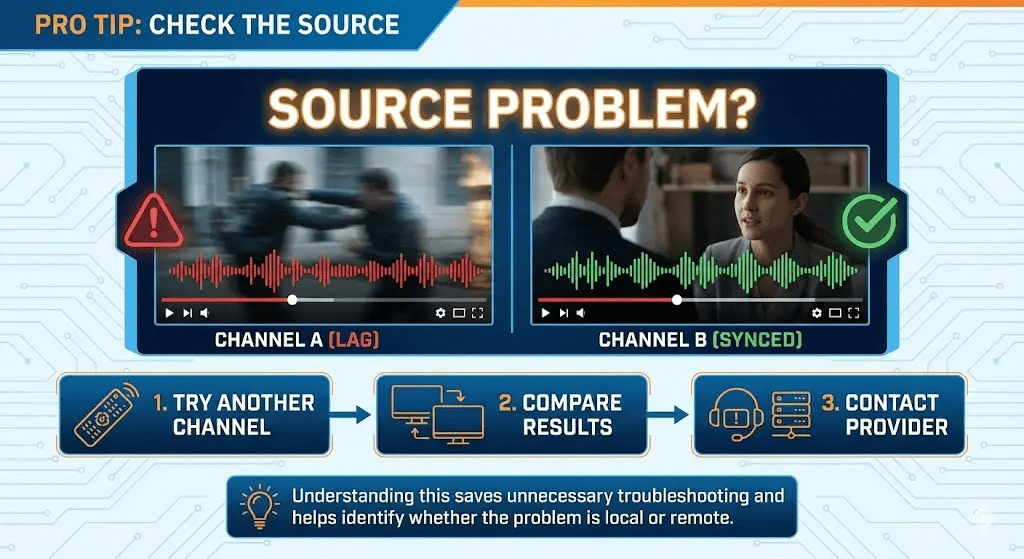
Sometimes, the issue isn’t your device or app—it’s the stream itself. Some IPTV providers may send channels with inherent sync problems. To test this:
- Try another channel or moviein IBO Player.
- If audio sync is fine on other streams, the problem is likely the source.
- Contact your provider to report the issue or switch to a channel with better server stability.
Understanding this saves unnecessary troubleshooting and helps you identify whether the problem is local or remote.
Conclusion
Audio out of sync can be frustrating, but most issues can be resolved quickly. Refresh the stream, adjust audio offset, change the decoder engine, clear the app cache, or ensure a stable internet connection. If these fixes don’t work, it may be a source issue from the provider.
For a smoother, uninterrupted experience, consider a premium IBO Player subscription, which offers better server stability, reducing the chances of audio lag and ensuring high-quality streaming.
By following these steps, you can enjoy your movies, shows, and sports events without distraction, trusting that your IBO Player setup is running at its best.