
It’s 2026, and smart TVs are smarter than ever—ultra-fast processors, AI-enhanced picture quality, and seamless app ecosystems. Yet somehow, that spinning buffering circle still manages to sneak in and ruin your favorite show at the worst possible moment.
Thank you for reading this post, don't forget to subscribe!Sound familiar?
If your IPTV keeps freezing, lagging, or buffering endlessly, don’t worry—you’re not alone, and more importantly, you’re not stuck with it. This guide will walk you through why buffering happens and give you step-by-step solutions you can try right now to get back to smooth, uninterrupted streaming.
Why Does IPTV Buffer on Smart TVs?
1. Internet Connection Problems
Even in 2026, your streaming quality still depends heavily on your internet speed and stability. Slow speeds or inconsistent connections are the #1 cause of buffering.
2. Wi-Fi Interference
Walls, furniture, and even other electronics can interfere with your Wi-Fi signal. If your TV is far from your router, your connection may weaken.
3. Overloaded Networks
4. Outdated Software
Smart TVs and IPTV apps receive frequent updates. Running old versions can lead to performance issues and bugs.
5. IPTV Server Issues
Sometimes, the problem isn’t on your end at all. Your IPTV provider’s servers may be overloaded or temporarily down.
6. Cache Overload
Apps store temporary data (cache) to run faster—but too much of it can actually slow things down.
Step-by-Step Fixes (Start Here First!)
Let’s tackle the problem logically, starting with the easiest solutions.
1. Check Your Internet Connection
Ask yourself: “Is my internet actually fast enough?”
- Run a speed test using your TV browser or phone.
- For smooth IPTV streaming:
- HD streaming: at least 10 Mbps
- 4K streaming: 25+ Mbps
Quick fixes:
- Move your router closer to your TV.
- Avoid placing it behind walls or inside cabinets.
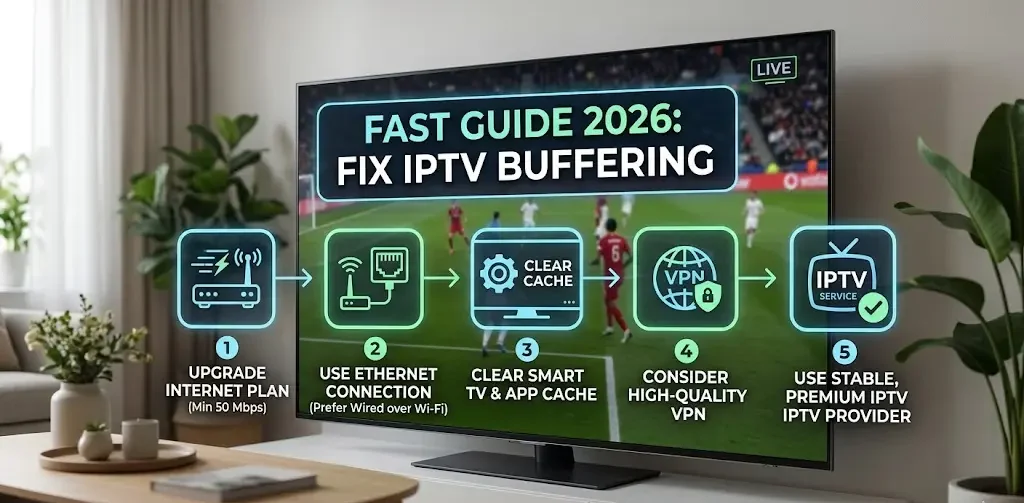
- Switch from Wi-Fi to a wired Ethernet connection if possible (this alone can eliminate buffering).
2. Restart Your Devices
Yes, it’s simple—but incredibly effective.
Do this in order:
- Turn off your smart TV.
- Unplug your router and modem.
- Wait 30–60 seconds.
- Plug everything back in and restart.
This clears temporary glitches and refreshes your network connection.
3. Update Your Smart TV and IPTV App
In 2026, updates often include performance improvements and bug fixes.
- Go to your TV’s Settings → Software Update
- Update your IPTV app via the app store
Why this matters:
Outdated software can cause compatibility issues, especially as IPTV services evolve.
4. Clear Cache and App Data
Over time, your IPTV app stores unnecessary data that can slow it down.
How to fix it:
- Select Clear Cache
- If needed, also select Clear Data (you may need to log in again)
Think of this as giving your app a fresh start.
5. Check IPTV Server Status
Here’s a key question: “Is everyone else having this problem too?”
- Try checking forums or your provider’s website
- Ask friends using the same service
If the server is down or overloaded, there’s little you can do except wait—but at least you’ll know it’s not your setup.
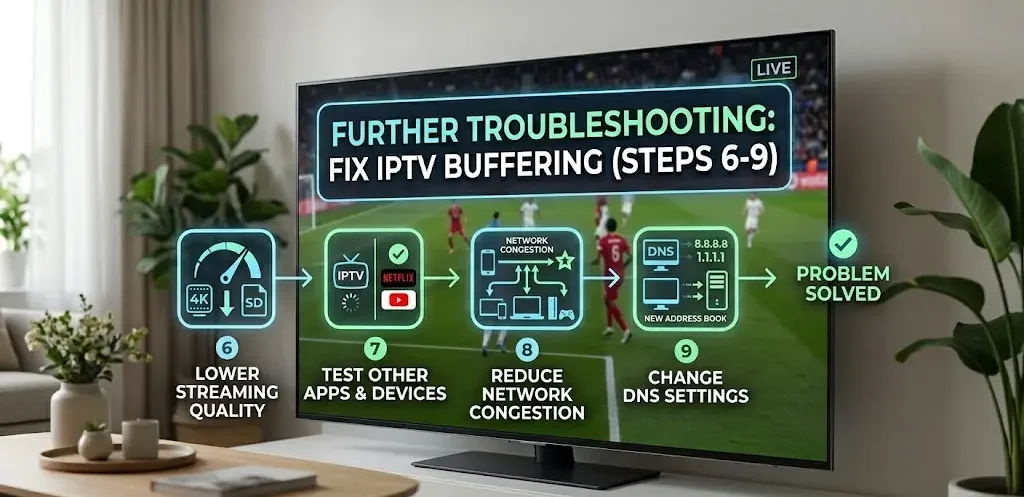
6. Lower Streaming Quality (Temporarily)
If buffering persists, try reducing the video quality:
- Switch from 4K → HD
- Or HD → SD
This reduces the amount of data needed, which can stabilize playback—especially on slower connections.
7. Test Other Apps or Devices
This step helps you pinpoint the issue.
- Does Netflix, YouTube, or another app buffer?
- Try IPTV on another device (phone, tablet, laptop)
If only IPTV buffers: likely a provider or app issue
If everything buffers: your network is the problem
8. Reduce Network Congestion
Take a look around your home:
- Are multiple devices streaming at once?
- Is someone gaming or downloading large files?
Solutions:
- Pause other activities temporarily
- Upgrade your internet plan if needed
- Use Quality of Service (QoS) settings on your router to prioritize your TV
9. Change Your DNS Settings
This might sound technical—but it’s easier than it sounds.
What is DNS?
It’s like the internet’s address book, helping your device find servers faster.
Switching to a faster public DNS can improve streaming performance.
Popular options:
- Google DNS:
8.8.8.8and8.8.4.4 - Cloudflare DNS:
1.1.1.1
You can change this in your TV’s network settings or router settings.
Pro Tips for Optimizing IPTV Performance in 2026
Want to go a step further? These tips can make a noticeable difference:
- Upgrade your router: Wi-Fi 6 or Wi-Fi 7 routers offer faster, more stable connections
- Use Ethernet whenever possible: It’s still the gold standard for streaming
- Position your TV wisely: Avoid placing it in signal dead zones
- Schedule heavy downloads: Avoid streaming during peak usage times in your home
- Restart regularly: A quick weekly reboot can prevent buildup issues
When Should You Contact Support?
If you’ve tried everything and buffering still won’t go away, it’s time to reach out.
Contact Your IPTV Provider If:
- Only IPTV is buffering
- Channels fail to load consistently
- You suspect server issues
Contact Your TV Manufacturer If:
- Apps crash frequently
- System performance is slow across all apps
- Firmware updates fail or cause issues
Final Thoughts:
Buffering might feel like an unavoidable annoyance, but in most cases, it’s fixable with a few simple adjustments.
Start with the basics—check your internet, restart devices, and update software—then work your way down the list. By following a logical approach, you’ll save time and avoid unnecessary frustration.
So next time that spinning wheel appears, don’t panic. You’ve got the tools to fix it.
Now go ahead—grab the remote, hit play, and enjoy your IPTV the way it was meant to be: smooth, seamless, and interruption-free.