
If you’re an avid streamer, you know the frustration: you’re watching your favorite show via an M3U playlist on VLC Player, and suddenly the audio is lagging behind the video—or worse, racing ahead. It’s a distraction that can ruin your viewing experience, whether you’re catching up on Hulu + Live TV, enjoying fuboTV’s sports coverage, or streaming content from Sling TV, iboplayermedia, or starprimemedia. The good news? Fixing audio sync issues in VLC is easier than you think.
Thank you for reading this post, don't forget to subscribe!Understanding the Problem
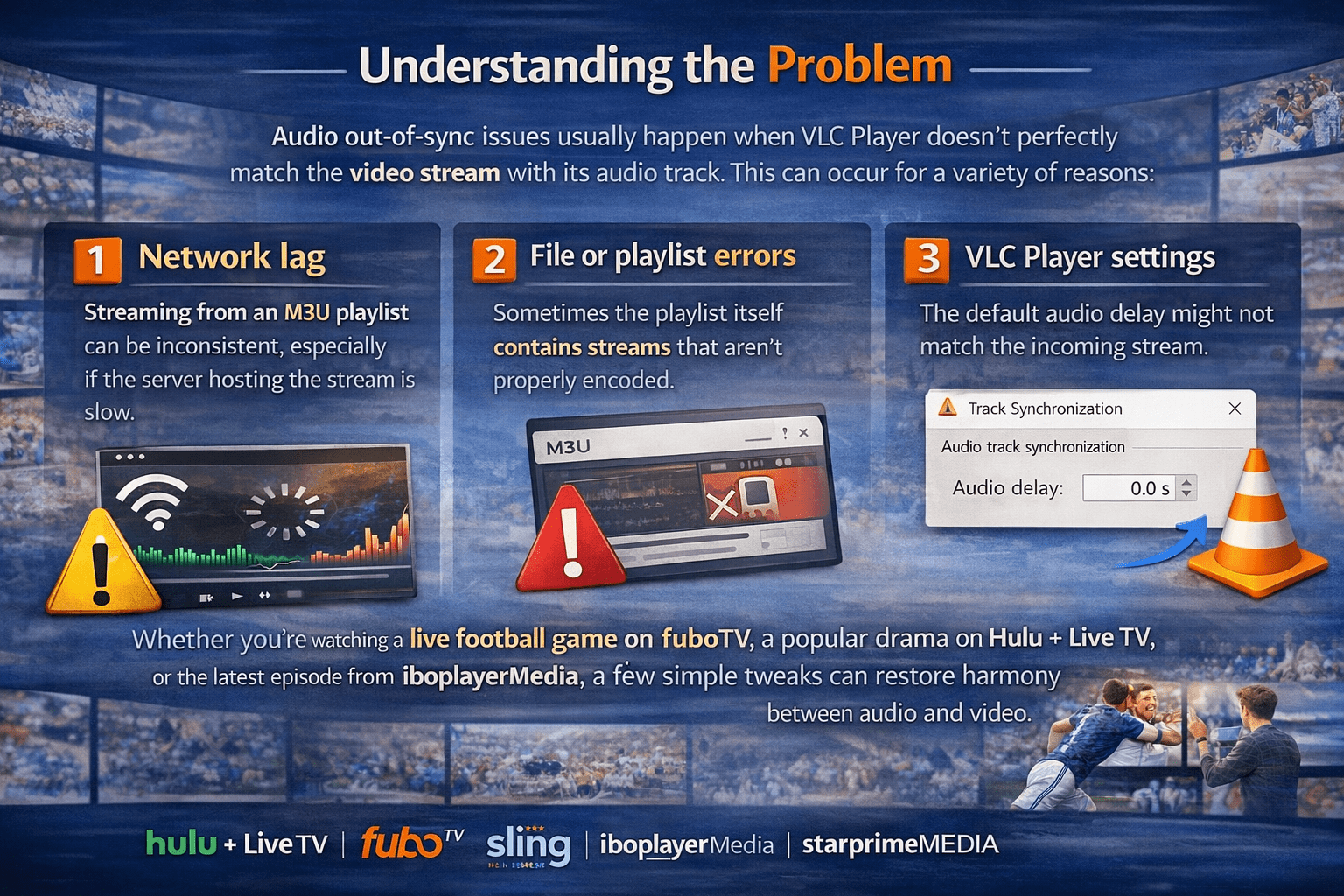
Audio out-of-sync issues usually happen when VLC Player doesn’t perfectly match the video stream with its audio track. This can occur for a variety of reasons:
Network lag: Streaming from an M3U playlist can be inconsistent, especially if the server hosting the stream is slow.
File or playlist errors: Sometimes the playlist itself contains streams that aren’t properly encoded.
VLC Player settings: The default audio delay might not match the incoming stream.
Whether you’re watching a live football game on fuboTV, a popular drama on Hulu + Live TV, or the latest episode from iboplayerMedia, a few simple tweaks can restore harmony between audio and video.
Step 1: Adjust Audio Delay in VLC
VLC Player has a built-in feature that allows you to manually synchronize audio and video.
Open your M3U playlist in VLC Player.
Start playing the video that’s out of sync.
Go to the top menu and click Tools → Track Synchronization.
In the Audio/Video section, you’ll see an Audio track synchronization box.
Enter a positive value (e.g., 0.5 seconds) if the audio is behind or a negative value if it’s ahead.
Play around with small increments until the sound perfectly matches the video.
Pro Tip: Live streams from Sling TV or starprimemedia may fluctuate, so occasionally, you might need to tweak the delay during playback for perfect sync.
Step 2: Use Keyboard Shortcuts for Quick Fixes
If you don’t want to dive into menus mid-stream, VLC has handy keyboard shortcuts:
Jkey – Decrease audio delayKkey – Increase audio delay
This is especially useful when streaming fast-paced content like sports on fuboTV or high-action shows on Hulu + Live TV, where even a minor audio lag can feel jarring.
Step 3: Check Your Playlist or Stream Source
Sometimes, the problem isn’t VLC but the M3U playlist itself. Consider these tips:
Premium streams from iboplayerMedia or starprimemedia are usually more stable.
If multiple streams are available for the same channel, try switching to another link—some may be better synced than others.
Avoid overly long playlists with mixed-quality streams; they tend to increase buffering and sync issues.
Step 4: Update VLC Player
VLC Player is constantly improving its handling of streaming formats. Running an outdated version can result in unnecessary playback issues. Updating ensures you have the latest audio/video synchronization improvements.
On Windows/Mac: Go to Help → Check for Updates.
On Linux: Use your package manager to get the latest version.
Keeping VLC updated also ensures compatibility with newer streaming services like Hulu + Live TV, fuboTV, Sling TV, iboplayerMedia, and starprimemedia.
Step 5: Optimize Your System
Buffering and sync issues can sometimes be caused by your computer rather than VLC. Try these optimizations:
Close unnecessary apps to free up CPU and memory.
Make sure your internet connection is stable, particularly for live streaming.
Consider wired connections for uninterrupted playback of services like fuboTV or Sling TV.
Step 6: Explore Alternative Streaming Options
If audio sync issues persist despite your best efforts, it might be worth considering premium streaming platforms known for reliable playback:
Hulu + Live TV – Offers seamless live TV streaming with minimal buffering.
fuboTV – Ideal for sports fans needing high-quality live streams.
Sling TV – Lightweight, flexible, and budget-friendly.
iboplayerMedia and starprimemedia – Great for international and niche content with well-maintained M3U playlists.
These platforms are often more stable than free or unofficial M3U playlists and can reduce the need for constant manual sync adjustments.
Wrapping It Up
Audio out-of-sync issues in VLC Player don’t have to ruin your streaming experience. By using VLC’s audio delay tools, keyboard shortcuts, reliable playlists, and system optimizations, you can enjoy your favorite shows and live events in perfect sync. Whether it’s binge-watching your latest series on Hulu + Live TV, catching a thrilling match on fuboTV, or exploring new channels on Sling TV, iboplayerMedia, or starprimemedia, smooth playback is just a few clicks away.
So next time your audio starts lagging behind your video, remember: a few tweaks in VLC and a reliable playlist source are all you need to bring harmony back to your stream.