
Watching IPTV on an LG Smart TV is easier than most people think. If you own an LG TV running webOS, you don’t need extra cables or complicated hardware to start streaming live TV channels, movies, and sports. With the right app and a stable internet connection, you can turn your TV into a complete entertainment hub.
Thank you for reading this post, don't forget to subscribe!In this detailed guide, you’ll learn:
What you need before getting started
How to install an IPTV app on LG webOS
How to add your IPTV playlist (M3U or portal URL)
Tips to improve streaming quality
Legal and safety considerations
Alternative streaming platforms like YouTube TV, Hulu, IPTVTOUR, StarPrimeMedia, and IboPlayerMedia
Let’s get started.
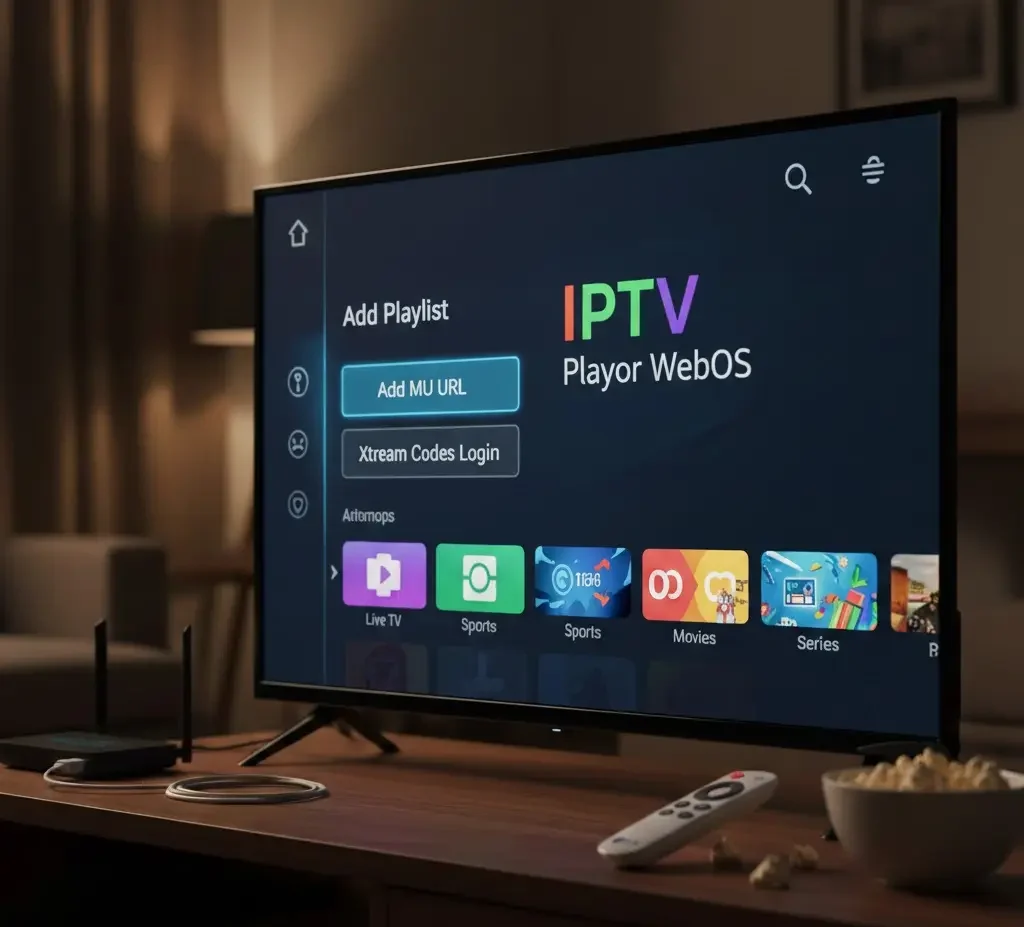
What You Need Before Watching IPTV on LG webOS
Before installation, make sure you have:
LG Smart TV running webOS
(Most LG TVs from 2016 onwards use webOS.)Stable Internet Connection
Minimum: 10 Mbps for HD
Recommended: 20–30 Mbps for smoother streaming
An IPTV Subscription
This typically includes:M3U playlist URL
Xtream Codes login (username, password, server URL)
Or a portal URL
An IPTV Player App
LG TVs do not come with IPTV built in. You must install a compatible IPTV player from the LG Content Store.
Step 1: Install an IPTV App on LG webOS
LG’s webOS does not allow direct APK installations like Android devices. Instead, you must use apps available inside the LG Content Store.
How to install:
Press the Home button on your LG remote
Open LG Content Store
Use the search bar and type “IPTV”
Choose a compatible IPTV player
Click Install
Wait for installation to complete
Open the app
Once installed, the app will usually display a screen asking for playlist details or a device ID.
Step 2: Add Your IPTV Playlist
There are generally two common methods:
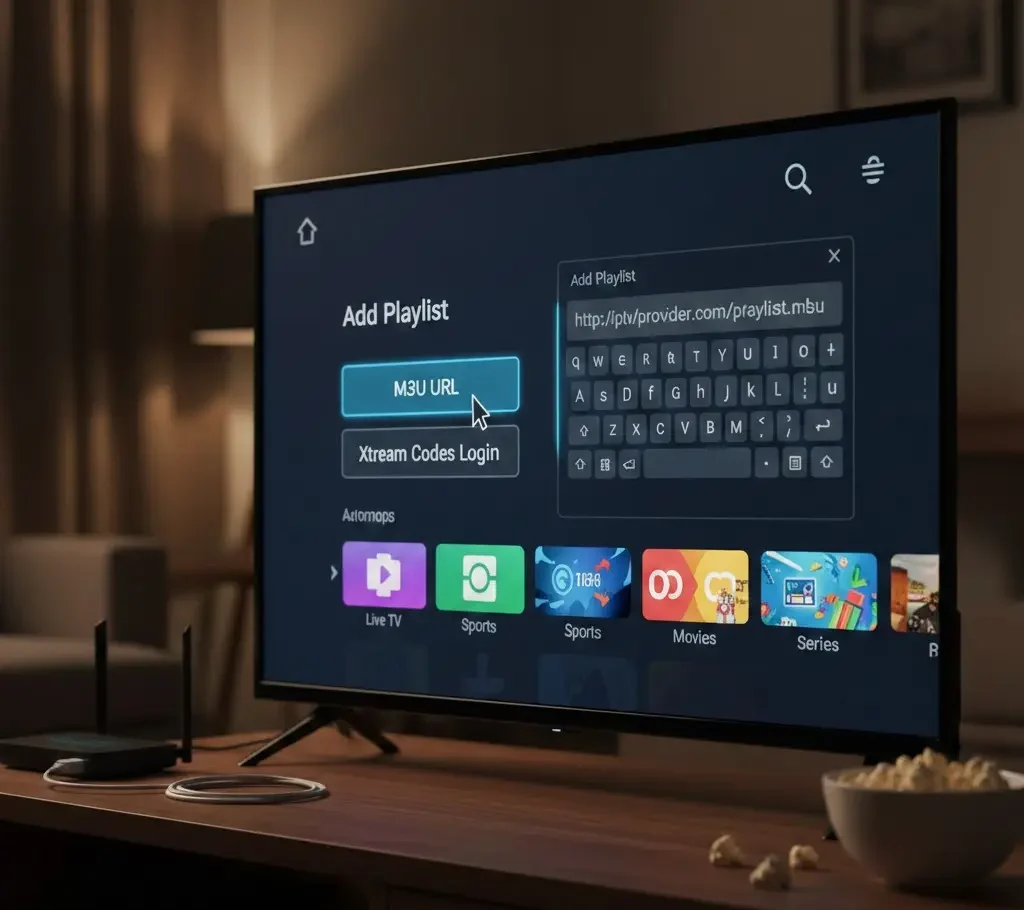
Method 1: Using M3U Playlist URL
Open your IPTV player app
Select “Add Playlist”
Choose M3U URL option
Enter the URL provided by your IPTV service
Save and refresh
After loading, channels should appear categorized by:
Live TV
Sports
Movies
Series
Method 2: Using Xtream Codes Login
Some IPTV providers give you:
Username
Password
Server URL
Steps:
Select “Xtream Codes Login”
Enter credentials
Click connect
The app will automatically load channels and categories.
Step 3: Optimize Streaming Quality
Even with the right setup, performance depends heavily on internet stability.
Tips for better streaming:
Use Ethernet cable instead of WiFi (more stable)
Restart router before streaming
Close background apps
Reduce other heavy downloads on your network
Use 5GHz WiFi if Ethernet is not possible
If you experience buffering:
Check internet speed
Restart the IPTV app
Restart the TV
Understanding IPTV Legality
IPTV itself is simply a technology for delivering television over the internet. However, legality depends on:
Whether the service has rights to broadcast content
Your country’s streaming laws
If you prefer fully licensed services, platforms like YouTube TV and Hulu provide legal access to live TV and on-demand content.
Always research your provider before subscribing.
Comparing IPTV Services and Alternatives
LG webOS works with many IPTV providers. Some users choose services such as:
IPTVTOUR for international channel access
StarPrimeMedia for sports-focused streaming
IboPlayerMedia for multi-device compatibility
Meanwhile, subscription-based platforms like YouTube TV and Hulu offer structured channel packages with official broadcasting rights.
Your best choice depends on:
Budget
Channel preference
Local regulations
Streaming quality expectations
Advantages of Watching IPTV on LG webOS
Here are the biggest benefits:
1. No Extra Device Needed
You don’t need a Firestick or Android box.
2. Clean Interface
webOS is user-friendly and responsive.
3. Remote Navigation
Everything works through your standard LG remote.
4. Multi-Category Access
You can access:
Live channels
Sports
Movies
International content
Common Problems and Solutions
IPTV App Not Loading
Restart TV
Reinstall app
Check internet
Channels Not Showing
Refresh playlist
Verify login credentials
Contact IPTV provider
Audio/Video Out of Sync
Restart stream
Switch channel and return
Frequently Asked Questions
Can I install any IPTV app on LG webOS?
Only apps available in the LG Content Store are supported. You cannot install Android APK files directly.
Do I need a VPN?
It depends on your location and service terms. Some users use VPNs for privacy, but performance may vary.
Is IPTV better than cable?
IPTV often offers:
More channel variety
Lower cost
On-demand flexibility
However, reliability depends on internet quality.
Final Thoughts
Watching IPTV on LG webOS TV is simple once you understand the setup process. All you need is:
A stable internet connection
A compatible IPTV app
A valid IPTV subscription
From there, you can stream live channels, sports, movies, and more directly on your Smart TV without additional hardware.
If you prefer fully licensed streaming, services like YouTube TV and Hulu provide structured TV packages. Meanwhile, IPTV-focused providers such as IPTVTOUR, StarPrimeMedia, and IboPlayerMedia offer flexible internet-based viewing options.
The key to a smooth experience is choosing a reliable provider and ensuring your internet connection is stable.
With the right setup, your LG webOS TV can become a powerful streaming center for your home entertainment.