
If you have an IPTV subscription with an M3U playlist, you can transform your smart TV into a complete entertainment system. Unlike traditional cable, IPTV delivers television content over the internet, allowing you to access a wide range of channels, movies, and live events. This guide walks you through setting up an IPTV M3U playlist on both Samsung and Android smart TVs, with tips to ensure smooth performance and avoid common issues.
Thank you for reading this post, don't forget to subscribe!Prerequisites
Before starting, make sure you have the following items:
- A working IPTV subscription: Only use legitimate providers for safety and reliability.
- The M3U playlist URL: Your IPTV provider should supply a direct link to your playlist.
- A compatible IPTV app: Apps like IPTV Smarters Pro, TiviMate, VLC Media Player, or Smart IPTV are widely supported.
- Stable internet connection: A reliable connection is critical for smooth streaming; wired Ethernet is ideal, but strong Wi-Fi can also work.
- Updated TV software: Ensure your Samsung TV has the latest Tizen firmware or your Android TV is up to date to avoid compatibility problems.
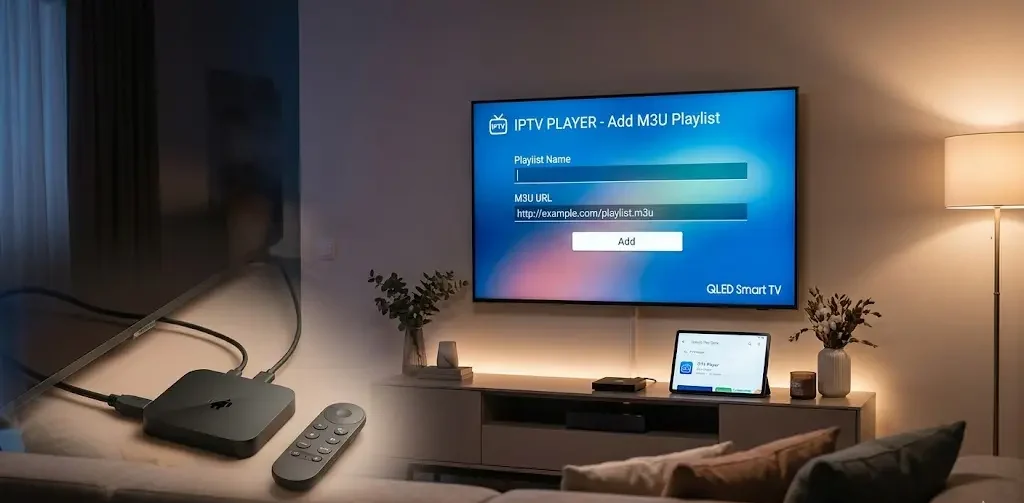
Setting Up IPTV on Samsung Smart TVs (Tizen OS)
Samsung Smart TVs use the Tizen operating system. Several apps support M3U playlists, and the setup process is straightforward.
Step 1: Install an IPTV App
- Press the Home button on your Samsung remote.
- Navigate to the Apps section.
- Search for one of the following IPTV apps:
- Smart IPTV
- IPTV Smarters Pro
- TiviMate
Select Install and allow the app to download and complete the installation.
You can also visit the official IPTV Smarters Pro website to confirm the latest version:
IPTV Smarters Pro Official Website
Note: Some apps may require activation through a web portal. Always use official sources to avoid security risks.
Step 2: Add Your M3U Playlist
Once installed:
- Open the IPTV app.
- Look for an option like “Add Playlist” or “Login with M3U URL.”
- Enter the following information:
- Playlist Name: Choose a recognizable name, such as “My Channels.”
- M3U URL: Paste the link exactly as provided by your IPTV provider. Ensure there are no extra spaces or characters.
- Click Save or Add. The app will validate the URL and begin loading channels.
Step 3: Load and Start Watching
- Once loaded, your channels will appear in categories such as Sports, News, Movies, or Entertainment.
- Select a channel to start streaming.
- Many apps allow you to organize favorites, hide unused channels, or reorder lists for easier access.
Setting Up IPTV on Android Smart TVs (Android TV / Google TV)
Android TVs are flexible and support a wide range of IPTV apps. The setup process is slightly different but remains user-friendly.
Step 1: Install an IPTV App
- Open the Google Play Store.
- Search for one of the following apps:
- IPTV Smarters Pro
- TiviMate
- VLC Media Player
- GSE Smart IPTV
- Click Install and wait for the app to finish downloading.
VLC Media Player is suitable for basic streaming, while TiviMate and IPTV Smarters Pro provide advanced features like channel sorting, EPG support, and user-friendly interfaces.
Step 2: Add Your M3U Playlist
Using IPTV Smarters Pro:
- Open the app.
- Select “Login with M3U Playlist.”
- Enter the playlist name and M3U URL.
- Click Add User. The app will validate the playlist and load your channels automatically.
Using VLC Media Player:
- Open VLC Media Player.
- Navigate to Playlist or Network Stream.
- Select Open Network Stream.
- Paste your M3U URL and click Play.
- VLC will display all available channels, ready for streaming.
Step 3: Load and Watch Channels
- Channels will be categorized automatically if supported by your playlist.
- You can select a stream to start watching instantly.
- Most apps allow you to create favorites, hide unwanted channels, and organize content for easy access.
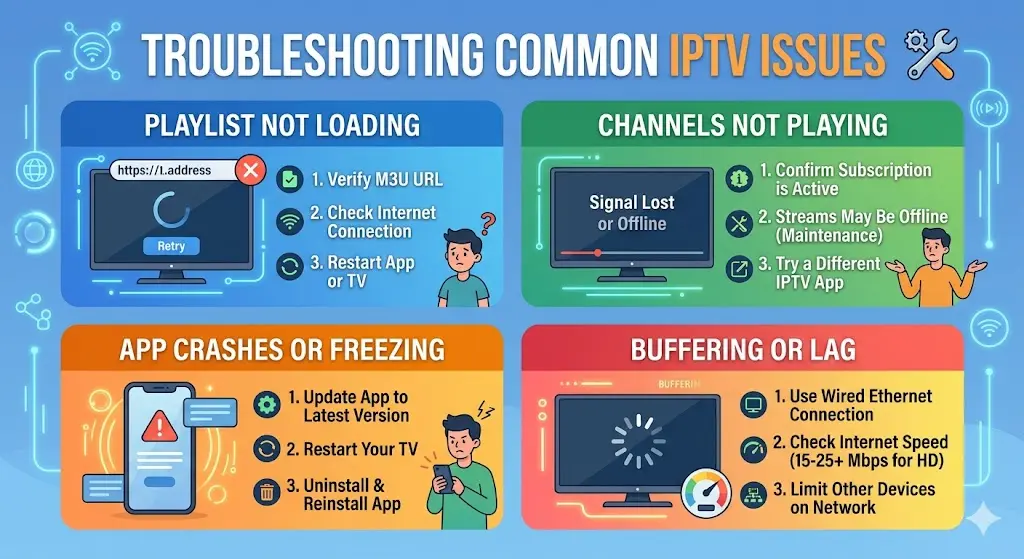
Troubleshooting Common Issues
Even when set up correctly, some issues may arise. Here’s how to address them:
Playlist Not Loading
- Verify that your M3U URL is correct.
- Ensure your internet connection is active.
- Restart the app or TV to refresh settings.
Channels Not Playing
- Confirm your subscription is active.
- Some streams may be temporarily offline due to server maintenance.
- Try switching to a different IPTV app if certain channels do not load.
App Crashes or Freezing
- Update the app to the latest version.
- Restart your TV to clear temporary issues.
- Uninstall and reinstall the app if problems persist.
Buffering or Lag
- Prefer a wired Ethernet connection over Wi-Fi for stability.
- Check your internet speed; 15–25 Mbps or higher is recommended for HD streaming.
- Limit simultaneous streaming on other devices using the same network.
Tips for a Better IPTV Experience
To make the most of your IPTV setup, follow these tips:
Use Reliable IPTV Apps
- TiviMate offers advanced customization and professional interface.
- IPTV Smarters Pro is beginner-friendly and widely compatible.
- VLC Media Player is simple and reliable for basic streaming.
Keep Apps Updated
Regular updates improve performance, fix bugs, and ensure compatibility with your TV’s firmware.
Organize Channels
- Create favorites lists for the channels you watch most.
- Sort channels into categories for easier navigation.
- Hide unused channels to reduce clutter.
Verify App Authenticity
Only download apps from official sources:
- Samsung App Store
- Google Play Store
- Official app websites, e.g., IPTV Smarters Pro
This ensures security and reliability.
Optimize Internet Connection
- Use Ethernet if possible for the best performance.
- Avoid streaming on multiple devices simultaneously.
- Restart your router periodically to maintain stable connectivity.
Conclusion
Setting up an IPTV M3U playlist on Samsung or Android smart TVs is straightforward if you follow the right steps. The key actions are:
- Install a reliable IPTV app.
- Add your M3U playlist.
- Load channels and start watching.
By optimizing your setup with a stable internet connection, keeping apps updated, and organizing channels, your smart TV can become a personalized entertainment hub. With this setup, you gain flexibility, convenience, and access to a wide variety of content at your fingertips.