
The streaming landscape in 2026 has reached new heights, and the Fire TV ecosystem remains one of the most popular platforms for cord-cutters, entertainment enthusiasts, and sports fans. With the latest Fire TV OS, users are looking for ways to access live TV, premium sports channels, and on-demand content seamlessly. Enter IBO Player Media, a leading IPTV service designed to deliver high-quality streams, flexibility, and an intuitive interface that works perfectly with the Fire TV Stick.
Thank you for reading this post, don't forget to subscribe!This guide will take you step-by-step through installing and optimizing IBO Player on the latest Fire TV OS, while also exploring tips to maximize your viewing experience.
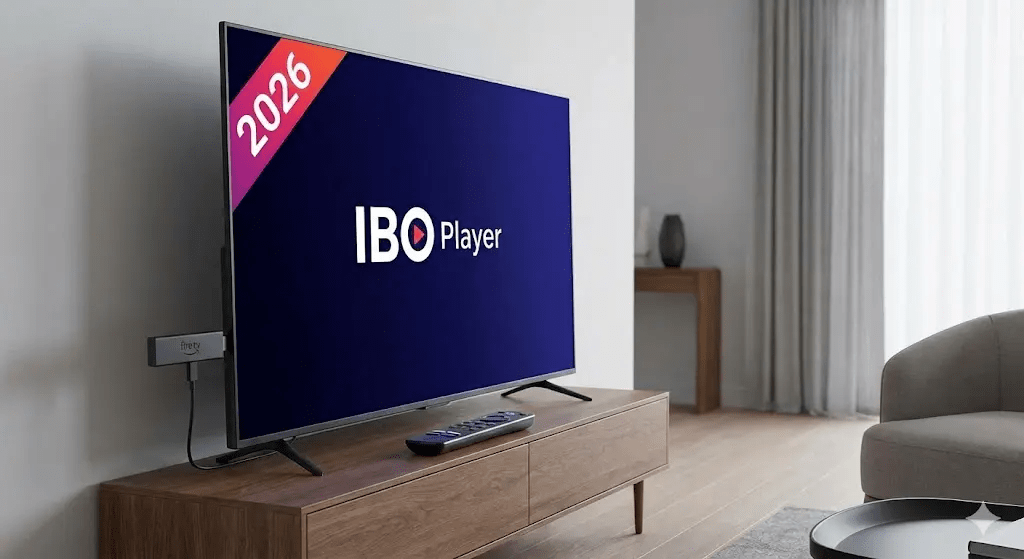
Why IBO Player Media is a Must-Have for Fire TV Users
[elementor-template id=”2191″]
Before diving into installation, it’s important to understand why IBO Player Media stands out among IPTV providers:
- Extensive Channel Selection:IBO Player Media provides access to hundreds of live channels, including sports, news, movies, and entertainment from around the world.
- High-Definition Streams:With 720p, 1080p, and even 4K streaming, IBO Player ensures crystal-clear visuals on modern Fire TV devices.
- User-Friendly Interface:The interface is designed for simplicity, making navigation on Fire TV Stick smooth, fast, and intuitive.
- Multi-Device Support:IBO Player isn’t limited to Firestick; it also works with Android, iOS, Smart TVs, and more.
- Commercial Reliability:For users seeking a stable, high-performance IPTV service, IBO Player Media’s servers are optimized for minimal buffering, low latency, and consistent uptime.
By combining Firestick’s versatility with IBO Player Media’s premium IPTV services, users get an unparalleled streaming experience.
Step 1: Prepare Your Firestick for Installation
The first step is to ensure your Firestick is ready to install apps from outside the Amazon Appstore, as IBO Player is often sideloaded for installation. Here’s how to prepare:
- Access Settings:From your Fire TV home screen, navigate to Settings > My Fire TV > Developer Options.
- Enable Apps from Unknown Sources:Toggle Install Unknown Apps and enable it for your preferred installer app, such as Downloader.
- Enable ADB Debugging:This allows smoother installation and troubleshooting of sideloaded apps.
Tip: Make sure your Fire TV OS is up to date. The new 2026 Fire TV OS introduces better security, faster app performance, and improved streaming optimization, making IBO Player even more efficient.
Step 2: Install the Downloader App
Downloader is one of the most reliable tools for installing third-party applications like IBO Player.
- Navigate to the Searchicon on your Fire TV home screen.
- Type Downloaderand select it from the results.
- Open Downloaderafter installation.
Downloader allows you to enter a URL and directly download the APK (Android Package) file of IBO Player.
Step 3: Download & Install IBO Player
With Downloader ready, it’s time to install IBO Player:
- Open the Downloader
- In the URL field, enter the official IBO Player Media download link. Make sure to use the link provided by IBO Player Media for the latest version to ensure compatibility with the Fire TV OS 2026.
- Click Go, and the APK file will start downloading.
- Once the download is complete, a prompt will appear asking if you want to install the app. Click Install.
- After installation, click Doneand optionally delete the APK file to save space.
IBO Player should now appear in your Apps & Channels list, ready to launch.
Step 4: Configure IBO Player on Firestick
After installation, optimizing the app ensures you get the best streaming experience:
- Launch the App:Open IBO Player from your Fire TV home screen.
- Login Credentials:Enter your IBO Player Media subscription username and password. For commercial users, ensure your account is verified and active.
- Set Streaming Quality:Navigate to the settings within IBO Player and select your preferred streaming quality. For Firestick 4K devices, 1080p or 4K is recommended.
- Enable Hardware Acceleration:Fire TV OS 2026 supports improved hardware acceleration for video playback. Enabling this in the app settings will minimize buffering and improve visual performance.
- Organize Channels:IBO Player allows users to categorize channels, favorite selections, and even sort by genre for quicker access.
Step 5: Optimize Firestick Settings for Smooth Playback
Even with IBO Player configured, Firestick settings can impact performance. For the best results:
- Clear Cache:Go to Settings > Applications > Manage Installed Applications > IBO Player > Clear Cache.
- Limit Background Apps:Free up memory by limiting background applications in Fire TV OS settings.
- Enable High-Speed Network:For streaming 1080p or 4K content, ensure your Firestick is connected via 5GHz Wi-Fi or Ethernet for consistent speed.
- Adjust Display Settings:Ensure Fire TV’s display matches the content resolution; 4K HDR or Full HD for older TVs.
Pro Tip: IBO Player Media automatically adjusts streams for bandwidth optimization, but combining it with Fire TV’s settings enhances reliability and prevents buffering.
Step 6: Discover IBO Player Media Features
IBO Player isn’t just a simple streaming app—it’s packed with features designed for advanced users:
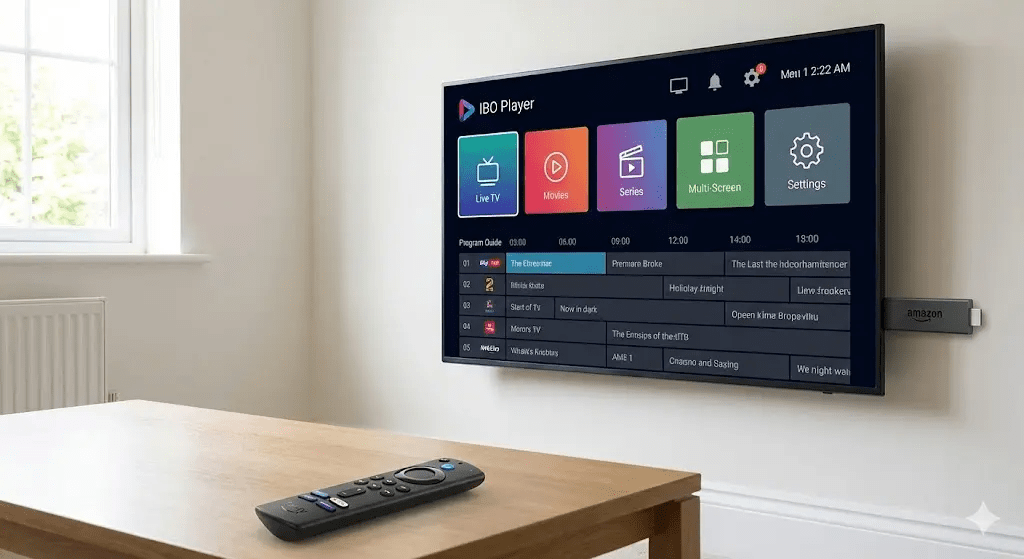
- EPG Integration:Access the electronic program guide for live channels to plan your viewing.
- Catch-Up TV:Many channels include on-demand content, allowing you to watch shows you missed.
- Multi-Screen Viewing:Watch multiple streams simultaneously for sports or news monitoring.
- Parental Controls:Restrict access to adult channels or inappropriate content for family-friendly usage.
- Commercial Packages:Ideal for small businesses or commercial venues, IBO Player Media supports multiple users and screens simultaneously.
Step 7: Troubleshooting & Support
Even with optimization, users may occasionally encounter issues. IBO Player Media provides excellent support resources:
- Official Knowledge Base:Guides for common errors, streaming quality settings, and subscription management.
- Live Chat Support:Real-time assistance for technical or account issues.
- Community Forums:Access tips from other Firestick users to enhance your experience.
Tip: Regular updates from IBO Player Media ensure compatibility with the latest Fire TV OS, so always check for updates in the app or via their official website.
Step 8: Maximize Your Firestick + IBO Player Experience
To fully harness the power of IBO Player on Firestick 2026:
- Combine with a VPN:For added security and to access geo-restricted channels.
- Integrate with Smart Home Devices:Use Fire TV voice commands via Alexa to launch IBO Player channels.
- Explore Commercial Plans:IBO Player Media offers commercial packages for bars, gyms, and entertainment venues, providing multiple streams and high-quality access for public viewing.
- Schedule Viewing:Use Fire TV OS features to automate favorite channels or playlists for easier access.
Conclusion
The 2026 Firestick is more powerful than ever, and pairing it with IBO Player Media transforms your Fire TV into a comprehensive streaming powerhouse. With live channels, sports, on-demand content, and commercial-grade reliability, IBO Player is the perfect solution for personal entertainment or business streaming needs.
By following this guide to install and optimize IBO Player on the new Fire TV OS, you’ll enjoy:
- Smooth, high-quality streaming with minimal buffering.
- Easy navigation and personalization for your favorite channels.
- Access to advanced features like catch-up TV, EPG guides, and multi-screen viewing.
- Reliable support and commercial streaming solutions.
For Fire TV enthusiasts and businesses looking to elevate their streaming experience, IBO Player Media is the ultimate IPTV solution in 2026. Don’t settle for limited content or inconsistent streams—upgrade your Firestick today and unlock a world of entertainment with IBO Player.